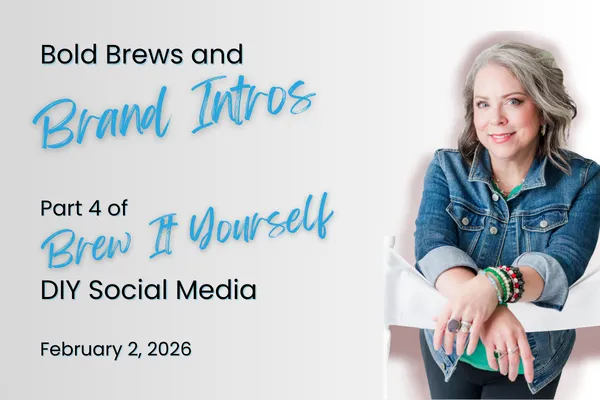
Bold Brews & Brand Intros: Week 4 of "Brew It Yourself: DIY Social Media"
This week in your Brew It Yourself: DIY Social Media series, we’re pouring focus into creating your About Me graphic — a rich espresso shot of your brand identity.
Because let’s face it: if people don’t know who you are, how can they trust your offer?
☕ Why this matters
Your audience doesn’t just want content. They want connection. A well-crafted About Me graphic is your handshake in a post — a bold intro brewed with personality and clarity.
Here’s how to get started:
Create a 4:5 Instagram-sized post in Canva.
Search templates using terms like “About Me,” “Meet the Team,” “Intro,” or “Our Story.”
Add a blank page before clicking a design so it stays organized in your file.
☕ Then customize the flavor
Swap in your brand colors, fonts, and photos (see Week 2’s brand kit setup).
Add your logo and website or contact info (small, but visible).
Include a professional headshot or on-brand image.
Use Canva tools like:
Position to bring text or images forward/backward
Background remover
Grouping elements
Text spacing and effects
(See details from the Caffeinate Your Canva Graphics from Scratch guide)
☕ Why include your info on the graphic?
People screenshot posts they want to come back to — and your graphic should guide them right back to you.
✅ Add:
Your web address
Your logo
Phone or email (if it’s not obvious on your site)
☕ Your goal: Make it unmistakably you.
When people see that graphic, they should instantly know it came from your brand — not some generic Canva cutout.
Here's the design I started with after searching "About us"

And here's how I modified it.

Notes: I first changed the background color to a coffee-colored one, then made it a gradient with a lighter version. I changed the font, colored some words with a brand color, changed out with a brand photo, added my logo, added my website. Level up: I used the Text spacing and changed to 50 for the website. I decreased it by -25 for the title. For the shadow around my pic, I duplicated my photo, went to Duotone, chose Custom, then changed both to white. Then I chose another edit, blur, to make it less sharp. Then I enlarged it, used Position to put it behind the image, and positioned it to look like a sort of halo shadow. I also used Duotone on my logo to make it all white.
☕ Hooks You Can Use To Introduce Yourself (Awareness Stage)
Ever wonder who’s behind this biz? Let me re-introduce myself.
If we were having coffee together, here’s what I’d tell you.
I never really shared my story… until now.
Here’s who I am — and why that matters.
If you’ve followed my biz but don’t know me, this post is for you.
Let me reintroduce myself: here’s what I do and love.
I built this brand with purpose — now meet the person behind it.
Before I post another tip… here’s who I really am.
This isn’t just what I sell — it’s who I serve.
I don’t just run this biz. I live it.
Ever wonder what I actually do for a living?
Here’s what makes me light up like a neon “open” sign.
Want to know the why behind my work?
If I had to describe my biz in one sentence…
I started this business for one reason: purpose.
What do I do? I help people show up.
This biz didn’t start by accident — it started with a calling.
Here’s how I use my gifts to serve others.
I’m not here to blend in. I’m here to help you stand out.
Real talk: this business changed my life — and here’s how.